March 29, 2026
Terminal: The Most Efficient Way to Work With AI Agents. A Complete Guide From Zero.
Everything you need to start building with AI agents, from absolute zero
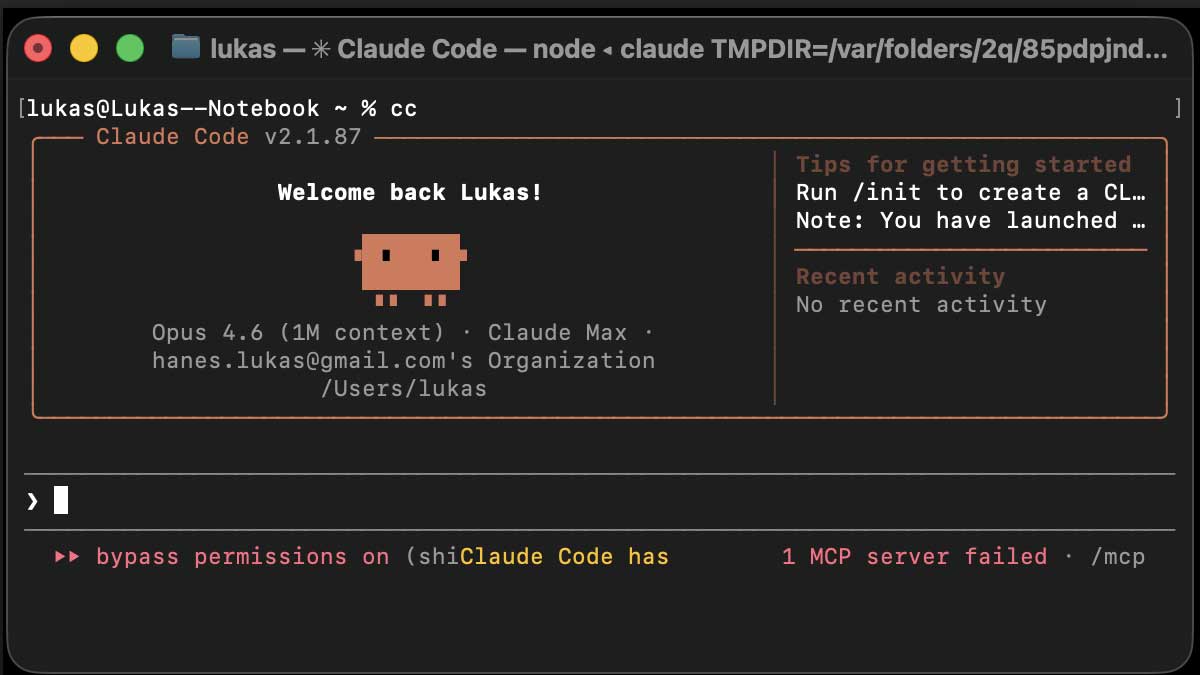
We spent decades making computers friendlier. Icons, windows, touchscreens, voice assistants. Everything got prettier and easier to use.
And then AI came along and said: "Cool. Now open the command line."
The most powerful development tool in 2026 runs in a black window with white text. No icons. No buttons. No drag and drop. Just you, a blinking cursor, and an AI that can build an entire application while you make coffee.
I use Claude Code. If you don't know where to start, this is my complete setup, from absolute zero. If you've never opened a terminal in your life, keep reading. I'll walk you through everything.
The Terminal: A Quick Survival Guide
Before we get into Claude Code, let's make sure you're comfortable with where you'll be spending your time.
What is the terminal?
It's a text-based way to talk to your computer. Instead of clicking on folders, you type commands. Instead of dragging files, you type where they should go. It feels ancient. It's incredibly powerful.
Yes, it looks scary at first. A blank screen with a blinking cursor feels like you're about to launch a nuclear missile. But give it a few days and it clicks. Once you get used to it, you'll realize it's the most efficient way to work with AI agents. Nothing else comes close, especially when you're juggling multiple projects or working remotely.
How to open it:
- Mac: Open "Terminal" (find it in Applications → Utilities, or hit Cmd+Space and type "Terminal")
- Windows: Open "PowerShell" (hit the Windows key and type "PowerShell")
Folders and navigation
Your computer's file system works the same in the terminal as in Finder or File Explorer, you're just navigating with text instead of clicks.
pwd                     # "where am I?" shows your current folder
ls                      # "what's here?" lists files and folders (Mac/Linux)
dir                     # "what's here?" same thing on Windows

cd Documents            # go into the Documents folder
cd ..                   # go one level up (back to parent folder)
cd ~/Projects/my-app    # jump directly to a specific path (Mac/Linux)
cd C:\Projects\my-app   # jump directly to a specific path (Windows)

mkdir my-new-project    # create a new folder
That's it. cd to move, ls/dir to look around, mkdir to create folders. You'll use these three commands constantly and almost nothing else for basic navigation.
The ideal workspace setup
Here's what my screen looks like when I'm working:
Left side: Terminal with Claude Code running. This is where the AI works: reading files, writing code, running commands.
Right side: A browser with claude.ai open. This is my thinking space. I use the chatbot to discuss architecture, draft prompts, ask questions about approaches, before I feed the final prompt into Claude Code.
Why two windows? Claude Code is an executor. It does things. The chatbot is an advisor. It thinks things through. I plan on the right, execute on the left. It's like having a whiteboard next to your workbench.
Some people use VS Code or another editor on the right instead, watching files change in real time as Claude edits them. That works too. The point is: terminal on one side, something else on the other. Don't try to do everything in one window.
Why write prompts in English
My native language is Czech, and Claude understands it (and dozens of other languages) perfectly fine. But for coding prompts, English works better. Here's why:
Technical terms don't need translation. "Create a REST API endpoint" is clearer than trying to describe the same thing in your native language. Most documentation, Stack Overflow answers, and code examples that Claude learned from are in English. And error messages, variable names, and code comments are all in English anyway.
My rule: prompts in English, user-facing content in your language. When you need localized text in the UI, just say: "Write the UI copy in [your language]." Claude handles it. But the instructions themselves? English. Always.
Why Git Is Not Optional
This is the thing most people underestimate. "I'm just starting out, I don't need Git." Wrong. With an AI agent, you need Git more than ever.
Git is your safety net. Claude will make mistakes. Overwrite a file, delete something it shouldn't have, implement a completely wrong approach. Without Git, you're screwed. With Git, you type git checkout . and the world is right again.
Git is sync between machines. I work on a Mac, sometimes on a Windows PC. Code lives on GitHub. I don't have to transfer anything, copy anything. Clone, pull, push. Both machines always have the current state.
Git is project memory. Claude Code sessions are local and temporary. But files in the repository (CLAUDE.md, your plan, your progress log) survive everything. A new session, a computer restart, context compaction. When Claude loses context, you say "read CLAUDE.md and progress.md" and it's back in the picture.
Git is your review process. Before you push, you look at the diff. What changed? Does it make sense? Did something slip through that you didn't approve? With an AI agent editing dozens of files at once, this is critical.
What Is a Session?
When you launch Claude Code in your terminal, you start a session. Think of it as a conversation with Claude that has memory. Claude remembers what you discussed, what files it read, what changes it made, all within that one session.
Sessions are saved automatically. You can close the terminal, restart your computer, come back a week later, the session is still there. But you have to explicitly ask for it. This is the number one mistake people make:
cc→ starts a brand new session. Claude remembers nothing.cc --resume→ shows a list of all previous sessions. You pick one and continue.cc --continue→ jumps straight into the last session you had.
If you just type cc, you'll wonder why Claude has no idea what you were working on. That's because you started a fresh conversation. Always use --resume or --continue when you want to pick up where you left off.
This is also why naming sessions matters. When you see a list of 20 sessions, "Session from 2 days ago" tells you nothing. "Pulzar MVP - Auth module" tells you everything. Name them with /rename right after you start.
When Sessions Get Too Long
The longer you work in a single session, the more context builds up. Every file Claude read, every change it made, every message you sent. It all accumulates. At some point, Claude starts getting slow or confused. It might repeat mistakes, forget instructions, or ignore things you told it earlier.
This is normal. The fix is /compact. It compresses the conversation history, keeps the important stuff, throws out the noise. Think of it as Claude taking notes and then starting fresh from those notes instead of rereading the entire conversation.
When to use /compact:
- After finishing a major task, before starting the next one
- When Claude starts ignoring your earlier instructions
- When Claude repeats a solution that already didn't work
- When responses get noticeably slower
- Roughly every 30–45 minutes of intensive work
After compacting, Claude might lose some context. That's fine. Just tell it:
Read CLAUDE.md, docs/plan.md and docs/progress.md. Continue where we left off.And it's back up to speed. This is why those three files matter so much. They're your insurance policy against context loss.
When to Start a New Session vs. Continue
Continue the old session when you're picking up the same task from yesterday. Claude still has the conversation context and knows what's going on.
Start a new session when you're switching to a completely different task, or when the old session has become too bloated even after compacting. A fresh start with good project files (CLAUDE.md + plan + progress) is often faster than fighting a messy old session.
This is exactly why the files I describe below (CLAUDE.md, plan.md, progress.md) matter so much. They're persistent memory that lives outside the session. Claude reads them at the start, and suddenly it knows everything it needs to know, even though the session is brand new.
Three Files That Change Everything
Before you write a single line of code, create three files. You don't have to create them manually. Just start Claude Code in your project folder and paste this prompt:
Create the initial project structure:

1. CLAUDE.md: with sections for: project name and one-line description,
   stack (leave placeholder), rules (leave placeholder), project structure,
   and key context. Add a note that this file should be kept updated.

2. docs/plan.md: with a template: heading "Implementation Plan",
   Phase 1 with empty checkboxes for steps.

3. docs/progress.md: with a template: heading "Progress",
   today's date as first session, note "Initial project setup".

Use markdown. Keep it clean and minimal.
Claude creates all three files in seconds. Then you fill in the details: what's your stack, what are your rules, what are you building. Here's what each file does:
CLAUDE.md is the most important file in your entire project. Claude reads it automatically at session start. It contains your rules, stack, conventions, project structure. Everything Claude needs to know so it doesn't work blind. Think of it as an onboarding doc for a new developer. Except that developer is an AI and reads it fresh every session.
docs/plan.md is your implementation plan. Phases, steps, tasks. You don't write it manually. You tell Claude to create a plan, you review it, adjust it, approve it. Only then does coding begin. This is the single most important habit you can build: plan first, code second.
docs/progress.md is a log of what's done. At the end of every session, you tell Claude to write down what was accomplished and what's next. Next time you open a new session, Claude reads the progress and knows exactly where you left off. No repetition, no lost threads.
Why Plan Before You Code
Anthropic themselves admitted that without planning, only about a third of attempts succeed. Claude Code's creator Boris Cherny says he abandons 10–20% of sessions. The difference between a successful and failed session isn't the prompt. It's the preparation.
Without a plan, Claude starts writing code, hits a dependency it didn't know about, has to rewrite what it did, loses itself in context, and the result is a mess. With a plan, it knows exactly what to do, in what order, and why.
My process:
- "Create a detailed implementation plan. Do not write any code yet."
- I read the plan. I ask questions. I correct. I push back on what doesn't sit right.
- Once I'm satisfied: "The plan looks good. Start implementing step 1."
It takes ten minutes longer. It saves hours.
Tests as Autopilot
A test is a tiny script that checks if your code works. "When a user logs in with a correct password, they should get access." That's a test. You don't write them. Claude does.
Without tests, Claude writes code and says "done," but neither of you knows if it actually works. With tests, Claude has an objective scoreboard: 5 passed, 3 failed. It fixes what's broken, runs again, repeats until everything passes. All automatically.
How to do it in practice
It's a two-step conversation with Claude:
Step 1: Ask Claude to write tests:
Write tests for [feature you're building]. Cover the main scenarios
and edge cases. Do not implement the feature yet.
Claude creates test files. All tests fail because the feature doesn't exist yet. That's expected.
Step 2: Ask Claude to implement:
Now implement the feature. Make all tests pass.Claude writes code, runs the tests, sees what fails, fixes, runs again, in a loop, completely on its own, until everything passes.
When to use this
Not for everything. For small UI tweaks or content changes, just let Claude do it directly. But for anything with logic (authentication, payments, data processing, API endpoints, calculations), tests first. Always.
The magic is that tests survive everything. Claude's context gets compressed? Doesn't matter. New session? Doesn't matter. Claude runs the tests and instantly knows the state of the project. It's the one thing that never lies.
Remote Control: Coding From the Couch
Claude Code has a built-in Remote Control feature that lets you control your session from your phone. It works, but there's a better and more universal approach I've been using. I'll cover that in a separate article.
Switching Between Machines
Claude Code sessions are local, they don't transfer between machines. But your project files do. Finish on one computer, push to GitHub, pull on another, start Claude Code, tell it to read CLAUDE.md and progress.md. It picks up exactly where you left off. The session is just a conversation. The repo is the brain.
Effort Levels: Don't Burn Tokens for Nothing
Claude Code has an effort parameter (/effort) that controls how hard it thinks: low for quick questions, medium for most work, high for complex implementations, and max for architecture decisions. Don't leave it on high for everything. That's like driving in first gear on the highway. Switch based on what you're doing.
The Auto-Accept Question
Claude Code normally asks for permission before editing files or running commands. Every few seconds, it pauses and asks: "Can I edit this file? Can I run this command?" If you understand code, you can review each change. But if you're not a developer, or you simply don't want to babysit every action, those prompts are just noise. You don't know what you're approving anyway.
My recommendation: skip the permission prompts from day one. Launch Claude Code with --dangerously-skip-permissions (or use the cc alias from the setup section). Claude will work autonomously: reading, writing, running commands, without stopping to ask.
Yes, the flag literally says "dangerously." That's why Git matters so much. Claude makes a wrong move? git checkout . and everything is back to how it was. Git is your undo button. With Git in place, auto-accept is not dangerous. It's efficient.
The alternative, manually approving every file edit without understanding what you're approving, gives you a false sense of control. You're clicking "yes" anyway. Skip the theater. Let Claude work. Review the result, not the process.
What I'd Do Differently
If I started over today:
I'd write CLAUDE.md first, before anything else. Not after the project is set up. Before. It's the single highest-leverage thing you can do.
I'd use plan-first from session one. Not "let me just quickly scaffold this." Plan. Review. Then build. Every time.
I'd commit after every completed step. Not at the end of the session. After every step. Small, reviewable commits. Easy to roll back one step instead of losing an hour of work.
I'd name every session. Sounds trivial. But when you're picking from a list of 20 unnamed sessions trying to find the one where you fixed that auth bug, you'll wish you had.
Quick-Start Checklist
One-Time Setup
Install Claude Code:
curl -fsSL https://claude.ai/install.sh | bashCreate auto-accept alias:
echo 'alias cc="claude --dangerously-skip-permissions"' >> ~/.zshrc
source ~/.zshrc
New Project Setup
Navigate to wherever you keep your projects. This could be ~/Projects, ~/Code, C:\dev, your Desktop, anywhere. Then create a new folder for your project:
mkdir project-name
cd project-name
git init
Create these files:
project-name/
├── CLAUDE.md          ← rules and context for Claude
├── docs/
│   ├── plan.md        ← what to build
│   └── progress.md    ← what's done
└── src/               ← code goes here
Push to GitHub:
git add .
git commit -m "initial commit"
git remote add origin https://github.com/USERNAME/project-name.git
git push -u origin main
Every Session
Starting fresh (new task):
cd path/to/your/project              # navigate to your project folder
cc                                    # starts a NEW session
/rename Project Name - Feature        # name it immediately
/effort medium                        # set thinking level
Continuing previous work:
cd path/to/your/project
cc --resume                           # pick from list of saved sessions
Then (whether new or resumed):
Read CLAUDE.md, docs/plan.md and docs/progress.md.
Summarize the current state and continue with the next step.
End of Session
Update docs/progress.md with what was done and what's next.
Commit all changes with a descriptive message and push.
Key Shortcuts
| What | How |
|---|---|
| Set effort | /effort low / medium / high / max |
| Compress context | /compact |
| Full reset | /clear |
| Rename session | /rename Name |
| Remote Control | /rc |
| Exit | /exit |
| Plan/edit mode | Shift + Tab |
| Switch model | Option + P (Mac) |
| Fast mode | Option + O (Mac) |
| Undo Claude's action | Ctrl + Shift + - |
| Paste image | Ctrl + V |
| Add file to context | @filepath |
| Shell command | !command |
| Background task | &task |
| Side question | /btw question |
| New line in prompt | Shift + Enter |
| Clear input | Double Esc |
| Stash prompt | Ctrl + S |
| Edit in external editor | Ctrl + G |
Resume Work (Don't Just Type cc)
This is critical. Typing cc alone always starts a blank session. To continue previous work:
cc --continue      # continue last session (fastest)
cc --resume        # pick from session list (when you have multiple projects)
If a session feels slow or Claude gets confused:
/compactThen:
Read CLAUDE.md, docs/plan.md and docs/progress.md. Continue where we left off.Switch Machines
On the new machine:
git clone https://github.com/USERNAME/project-name.git
cd project-name
cc
Then read CLAUDE.md + plan + progress. Same workflow, different hardware.

March 12, 2026
I Built an App with AI: Here's What Nobody Tells You
A month-long journey of building a real app with AI. No fairy tales, no doom, just practical lessons about taste, judgment, and leverage that nobody talks about.

March 6, 2026
FoxDesk v0.3.75 Is Live
FoxDesk.org was created by Lukas Hanes as an open-source alternative to expensive SaaS platforms. Track support tickets and work logs for your team or AI agents with no per-agent fees and no vendor lock-in.
February 27, 2026
The People Who Show Up Early Rarely Stay on the Sidelines
The mood around AI right now is strange, and honestly a little funny. Not long ago, it was mostly novelty, but now every conversation swings between extreme optimism and panic. This essay explains why the real advantage still belongs to people who start building before everyone else agrees.